
Top Windows Commands Every Wannabe Programmer Should Know
by evenblad3
Fellow reader, if you’re a programmer but want to run stuff via the Windows Command Prompt this post is for you! If not, continue reading or get out (jk).
These are the commands you should know in my opinion which could save you some time. And remember that most command line utilities support /? flag which shows you bunch of stuff that the application can do so feel free to look what each command does.
cd - Change Directory
cd [your_dir] # Specify where you wanna go
cd .. # Go to the parent directory
cd /? # help
Or you can use chdir too.
ping - Networking utility
Use this to check if your computer is connected to the internet or to see if a host is up.
ping example.com # Simple ping, 4 times
ping example.com -n 10 # Ping 10 times
prompt - Change cmd.exe Command Prompt
This is pretty useful when you want to hide your username when screenshotting your cmd.exe.
Microsoft Windows [Version x.x.xxxx]> # Use prompt $V$G$S
prompt # Just type "prompt" to reset the it (without the quotes)
Here the the first command means:
prompt- The prompt app$V- Windows version number$G- Greater-than sign$S- Space
The second command should reset the prompt back to C:\Users\your_username>.
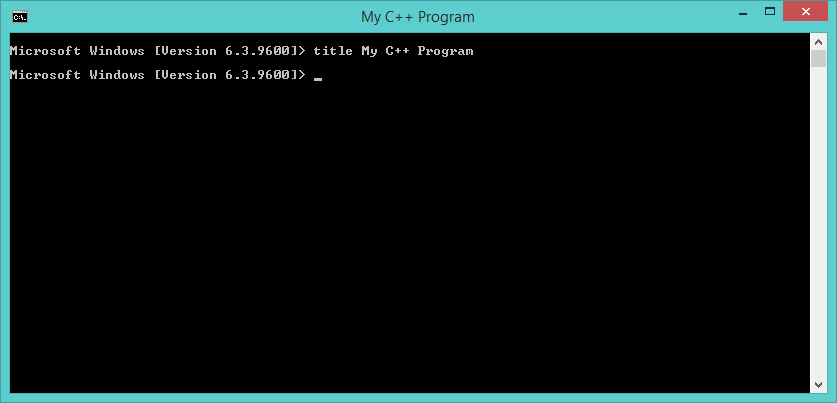
title - Set Title Of The cmd.exe Window
When you have multiple windows and want to name them.
title My C++ Program
diskpart - Manage Disks, Partitions And Volumes
Life saver when you’re dealing with some OS installation process such as rebuilding EFI partitions, erasing your disk, converting disk format, etc.
diskpart # Requires admin privilages lol
list disk # Shows number of disks in yo computer
select disk 0 # Replace 0 with your disk
list partiton # Shows no. of paritions
When your installing Windows and if you’re unable to install it as your disk is partitioned as MBR you can use this utility to convert it into GPT format.
WARNING: The following commands will erase the drive. Do NOT type them if you’re not installing it. Always have backups of critical information
diskpart # Enter the utility
list disk # Assuming I have only 1 drive
select disk 0 # Select that drive
clean # WARNING: ERASES YOUR DISK
convert gpt # Convert into GPT
exit # exit
Then your drive is converted as GPT and then you can install your Windows.
mkdir - Make Directory
Creates a folder.
mkdir mylovelyfolder # Make folder at current path
mkdir Documents\mylovelyfolder # Make folder at Documents
md mylovelyfolder # Same as "mkdir mylovelyfolder"
rmdir - Remove Directory
Deletes a folder.
rmdir mylovelyfolder
rmdir Documents\mylovelyfolder
rd mylovelyfolder # Same as rmdir mylovelyfolder
If your folder is NOT empty, the above commands won’t work. Pass the /S flag to delete it. It will ask for confirmation, type y for Yes and n for no.
rmdir mylovelyfolder /S
If you don’t want any confirmations to remove a folder pass the /Q flag
rmdir mylovelyfolder /S /Q
color - Change Console Colors
Changes the console foreground and background colors.
color a # Bright green
color 4e # Soviet Union ahh
color 1b # Blue Sreen of Death style
color # reset back to oringal color
tree - Display Folder Structure Graphically
Shows folders in the current directory recursively and optionally the files.
Very nice command if you want to make yourself look like a “hacker” if you use this command with color a
tree # Display folders at current path
tree /F # Display folders including files
Subscribe via RSS