
Top Windows Shortcuts Every Wannabe Programmers Should Know
by evenblad3
Top Windows Shortcuts Every Wannabe Programmers Should Know
Yo, I’d like to share some cool shortcut keys y’all beginners should know which could save you hell lot of time and this is not going to be some Ctrl + C/V BS, I’m going share something much cooler that you can use your Windows computer without a mouse.
First thing I’ll do when I open ny computer to open the explorer is by pressing Win + E. And then to check if my computer is connected to the internet, I open cmd with Ctrl + R -> cmd and then check it with ping google.com. Oh you can also open Command Prompt by pressing Win + X -> C. If you have a Windows 10 computer and if you want to run cmd as admin you might want to change that in the settings as usually it would be powershell as admin.
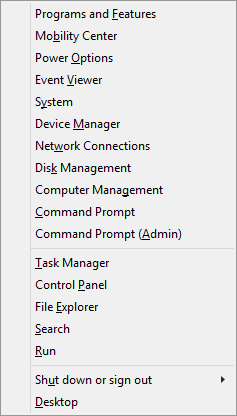
Next to browse the internet I open Run with Ctrl + R and then type chrome (msedge if you have edge, but don’t use both of these lol). I got multiple profiles on my Chrome browser, I press Tab a few times to go forward and press Shift + Tab few time to go back. Same shortcut applies to most apps, you can go back and forth with those shortcuts.
And then if you got some apps pinned to the taskbar you can launch them with Win + [x], where x is their spot number. Like if you have MS Paint as 4th one, just hitWin + 4.

Sometimes having to manually drag the windows to have them side by side can be painful. Press Win + ← to set the current window to the left. Win + → to the right, Win + ↑ to maximize and Win + ↓ to minimize.
You can also bring up the Project to a connected screen menu with Win + P, very useful if you want to turn on/off your monitors.
Alt + Tab to cycle between apps, sets to the selected window as soon as you release the Tab key. Hit Alt + Shift + Tab to backward. Hit Ctrl + Alt + Tab to have the selection window opened and press Enter when you want to go to the selected window.
Ctrl + Tab to switch between browser tabs, additionally press Shift to go backward.
Ctrl + Alt + Del, opens up Windows security window, lowkey useful when you wanna get out of applications fast that doesn’t minimize when pressing Win key.
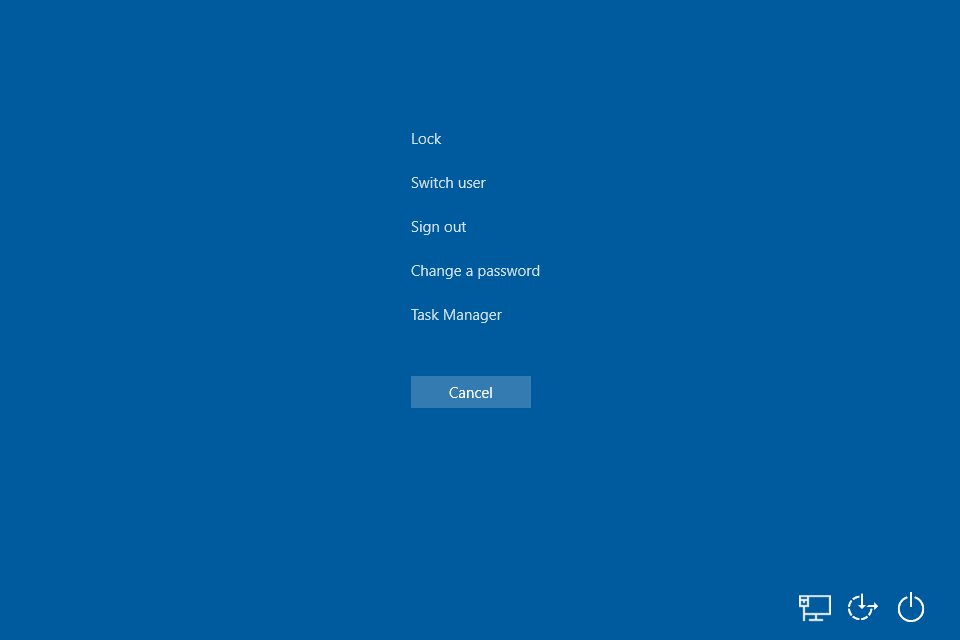 Credits: Image by RealVNC
Win + L to lock your PC when you’re going AFK, always practice this. You might not’t know who messes with your PC.
And when you’re typing something and want to place your cursor in between some words you can press Ctrl + ← to go to the left side of the whole ass word and Ctrl + Shift + ← to select the word going left side. Vice versa for right side.
Press End to get your cursor to the end of the line and vice verse for Home.
That’s it for today’s post, see you later :)
Subscribe via RSS